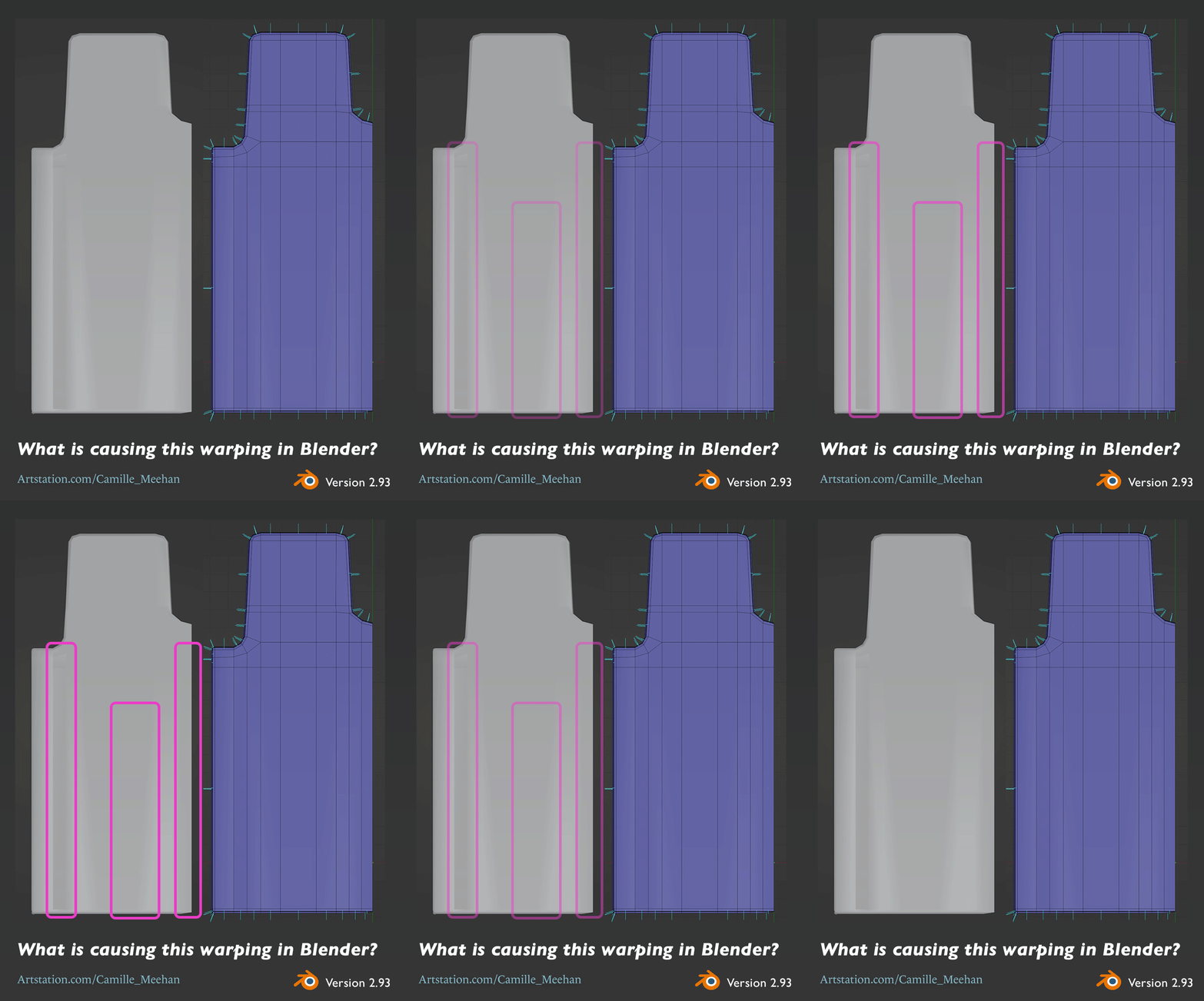
Had an issue with my work on the coaster car a couple of days ago where I was trying to figure out why my normals were all messed up. You can see the ugly distortion on the mesh below.
I asked for help.
Is there any obvious flaw with my topology that would cause these ugly warpings? This is the back of a seat that needs to be flat. I've flattened out components, lining them up with the same axis. I also ran a cleanup to remove stray components. I'm new to Blender and any help is appreciated.
Thank you to Daniel Lince (impressive new portfolio piece Daniel) on Discord, and to FrankPolygon and SnowInChina on the Polycount Mega Blender Thread.
(The solution is at the bottom, it is fine to jump ahead.)
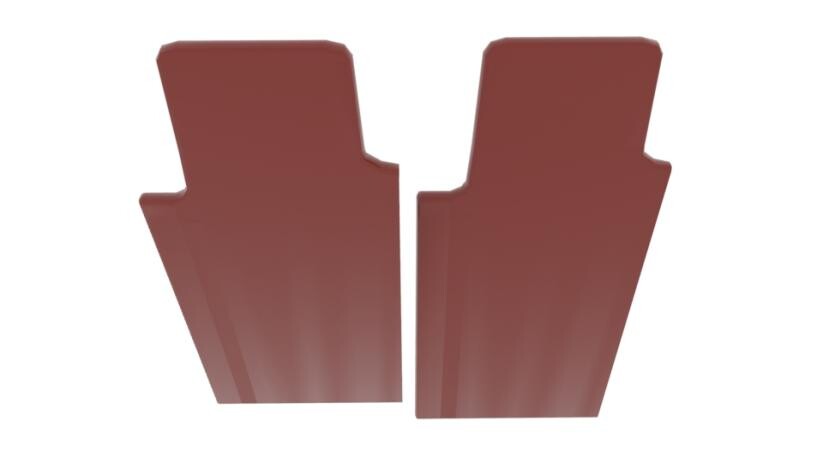
Daniel Lince had me check it out in another modeling program which is a good idea but showed it was still broken. The image below is a render in Arnold from Maya.
FrankPolygon really helped me further down the troubleshoot/educate-myself path. I'm quickly realizing the importance of the Blender docs.
@Camille_Meehan Looks like inconsistencies in the mesh shading properties. Try recalculating the normals, marking the faces with shade smooth, clearing sharp edges and setting the per-object auto smooth value to something above 45°.
Below are some links to the official documentation that covers each operation:
https://docs.blender.org/manual/en/latest/modeling/meshes/editing/mesh/normals.html#recalculate
https://docs.blender.org/manual/en/latest/modeling/meshes/editing/face/shading.html#shade-smooth
https://docs.blender.org/manual/en/latest/modeling/meshes/structure.html#properties
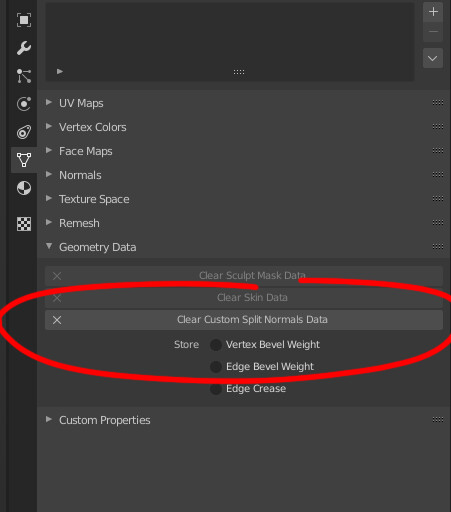
The solution!
Courtesy of SnowInChina.
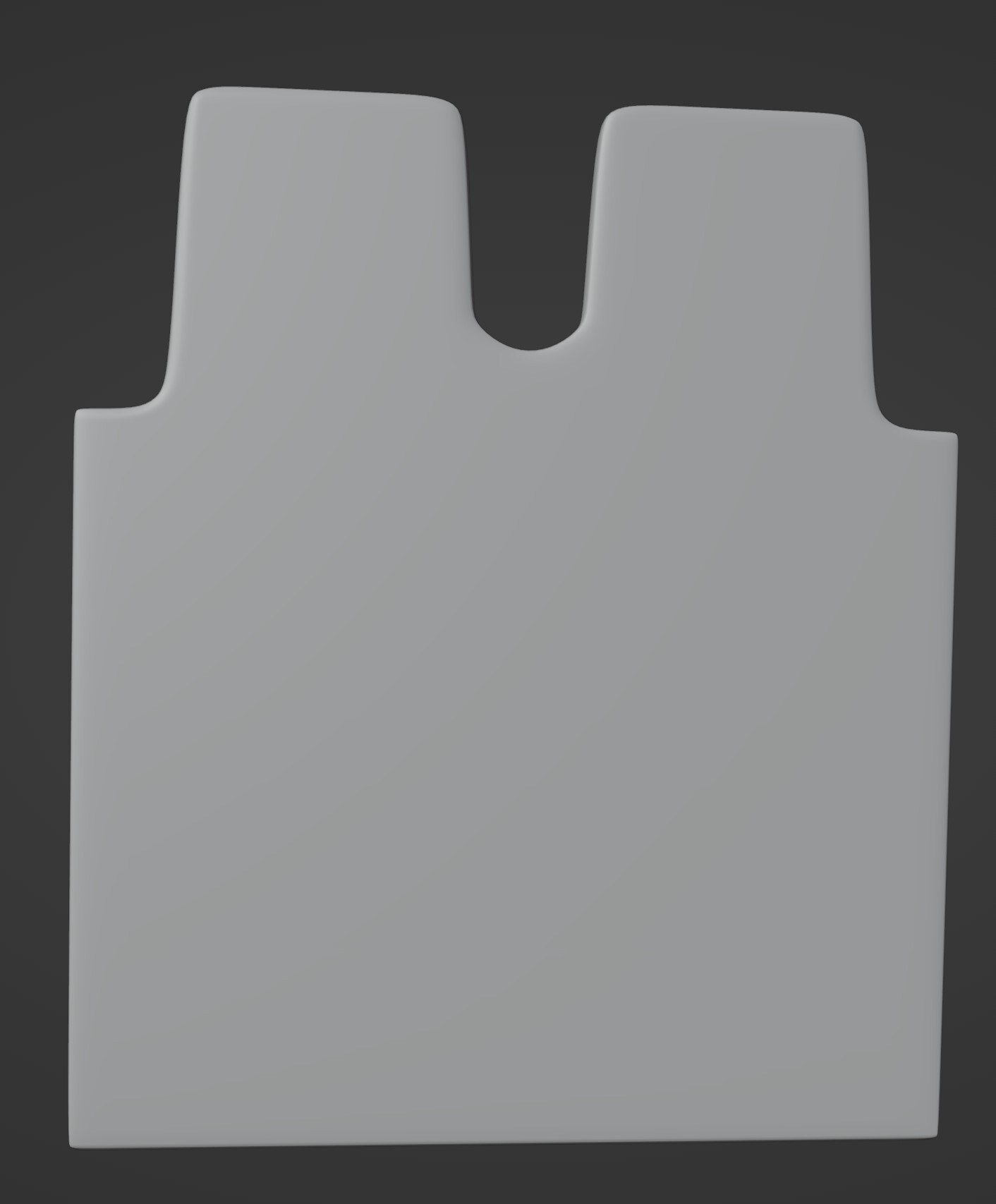
Smoothed end result below.
I had earlier smoothed and flattened my meshes to avoid subdividing, which in hindsight, was needless. In between that and the final high poly model, I deleted and filled faces, which resulted in the glorious nonsense above. Clearing the custom split normals data reset all that, which was what I needed.